
About this template
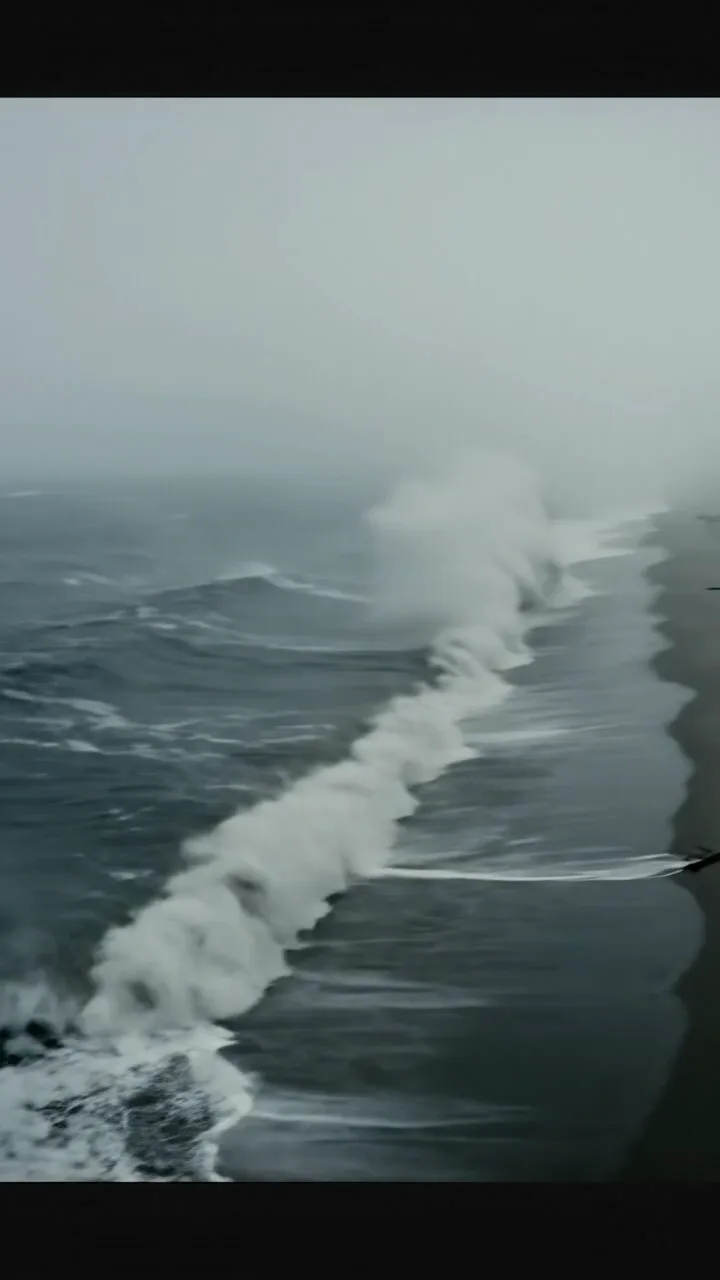
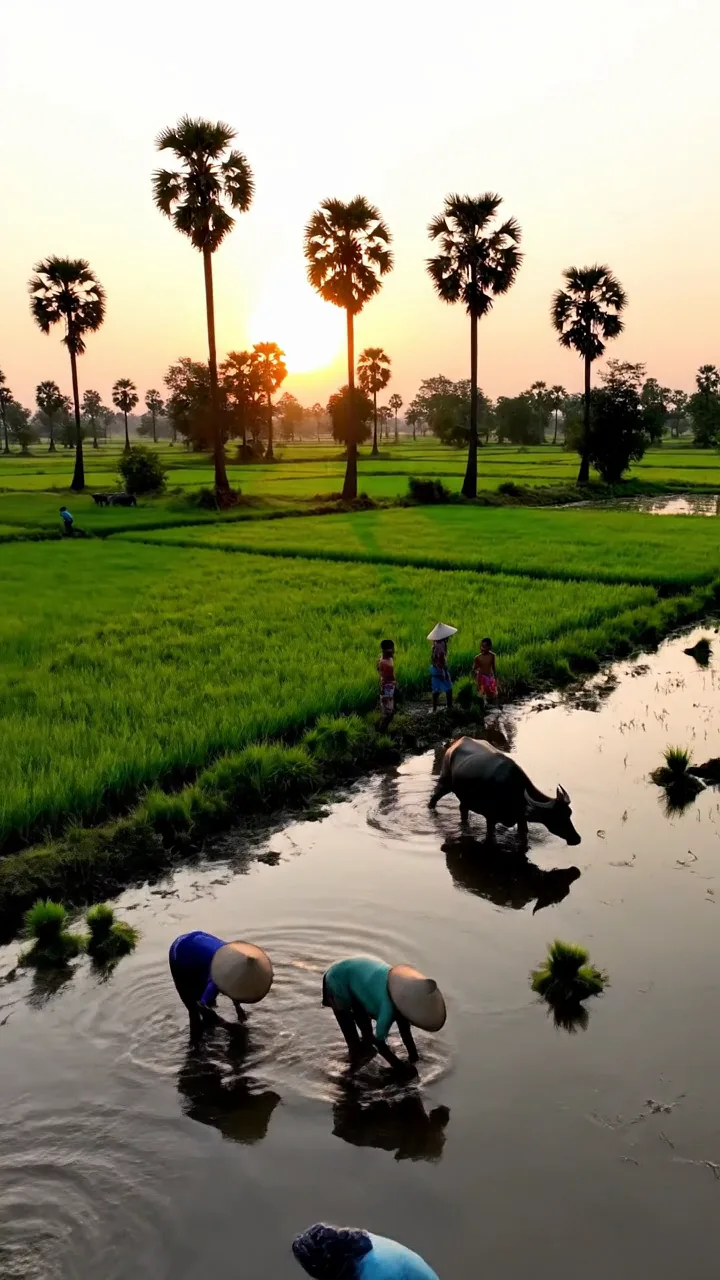
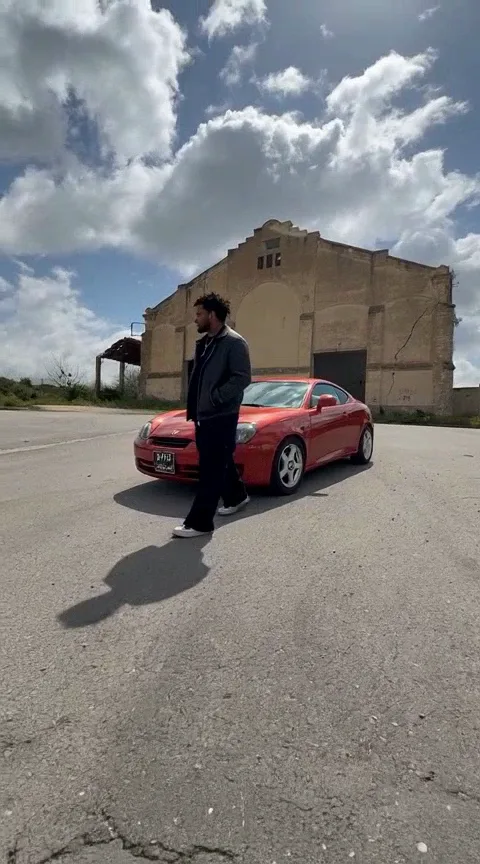
Use Forest Walk as a starting point for a short video. Look at the example, add your own subject or reference material, and adapt the scene to your idea.
Results can vary between generations. The example shows a possible look; your inputs and settings guide the result.
Keep the first scene simple: one subject, one setting, and one main action. Check that the composition and movement work before trying a longer or more detailed version.
How to get started
Sign in, write a prompt or add a supported image, then select the aspect ratio, duration, and other available options. Review the credit total and generate. Preview the completed clip before downloading.
Watch the example
Results can vary between generations. The example shows a possible look; your inputs and settings guide the result.
Add your details
Name the subject and action first, then describe the setting, lighting, camera movement, and mood. For example: a ceramic cup steaming beside a rain-covered window, soft side light, slow camera push-in, gentle room ambience.
Generate a first draft
Keep the first scene simple: one subject, one setting, and one main action. Check that the composition and movement work before trying a longer or more detailed version.
Refine the result
Review the beginning and end of the clip. Check faces, hands, text, and object movement. Keep the parts that work and change one instruction before generating another version.
Prompt tips
Name the subject and action first, then describe the setting, lighting, camera movement, and mood. For example: a ceramic cup steaming beside a rain-covered window, soft side light, slow camera push-in, gentle room ambience.
Describe the scene’s action, camera movement, and sound. If the selected mode supports audio, include any dialogue, ambience, or sound effects in the prompt. Review the sound as well as the picture after generation.
When to use this template
Choose this template when its example matches the scene or visual style you want. It can help you develop a social post, a story moment, or a creative concept.
Results can vary between generations. The example shows a possible look; your inputs and settings guide the result.
The generator shows the cost of your selected settings before you begin. Choose the version you want to keep and download it. Save the prompt with your file if you plan to create related scenes.
Compare the available models
Compare the available models by reference-image support, duration, resolution, audio options, and credit cost. Use the same short scene to compare results. Available controls are shown when you select a model.
Results can vary between generations. The example shows a possible look; your inputs and settings guide the result.
Frequently asked questions
- How do I create a video?
- Sign in, write a prompt or add a supported image, then select the aspect ratio, duration, and other available options. Review the credit total and generate. Preview the completed clip before downloading.
- What should I include in my prompt?
- Name the subject and action first, then describe the setting, lighting, camera movement, and mood. For example: a ceramic cup steaming beside a rain-covered window, soft side light, slow camera push-in, gentle room ambience.
- How do I choose a model?
- Compare the available models by reference-image support, duration, resolution, audio options, and credit cost. Use the same short scene to compare results. Available controls are shown when you select a model.
- How many credits does generation use?
- The generator shows the cost of your selected settings before you begin. Choose the version you want to keep and download it. Save the prompt with your file if you plan to create related scenes.
- Can I use the result commercially?
- Review your plan and Pixwit’s terms before commercial use. Make sure you have permission to use reference images, music, brands, or likenesses included in your project.
- How can I improve the result?
- Review the beginning and end of the clip. Check faces, hands, text, and object movement. Keep the parts that work and change one instruction before generating another version.
Review your result
Review the beginning and end of the clip. Check faces, hands, text, and object movement. Keep the parts that work and change one instruction before generating another version.
Results can vary between generations. The example shows a possible look; your inputs and settings guide the result.
Download and use your video
The generator shows the cost of your selected settings before you begin. Choose the version you want to keep and download it. Save the prompt with your file if you plan to create related scenes.
Review your plan and Pixwit’s terms before commercial use. Make sure you have permission to use reference images, music, brands, or likenesses included in your project.
Credits and downloads
The generator shows the cost of your selected settings before you begin. Choose the version you want to keep and download it. Save the prompt with your file if you plan to create related scenes.
Generation uses Pixwit credits. Complimentary credits and offers depend on account eligibility and region. Check your account for the current balance and conditions; free access does not mean unlimited generation.